By admin, on February 3rd, 2015 If you’ve ever had a resume reviewed by a friend, professor, or career advisor, they may have added comments, made changes, or revised your document in some way. This feedback can be very helpful, but if you don’t remove those comments and changes, you may unintentionally send them to your prospective employer! (Just so you know, I don’t use the comment feature when I review your resume; I’ll send you a video review containing all my suggestions and revisions.)
When you open your resume file, you can choose “No Markup” in the “Display for Review” box, but that will only hide tracked changes temporarily; the changes have not been deleted, and they’ll show up again the next time anyone opens the document. In order to delete the tracked changes permanently, you have to either accept or reject them. If you’re ever concerned that some comments are still lingering on your resume, run Word’s Document Inspector. By the way, use this same tip to ensure your term papers and other class assignments are comment-free before you turn them in.
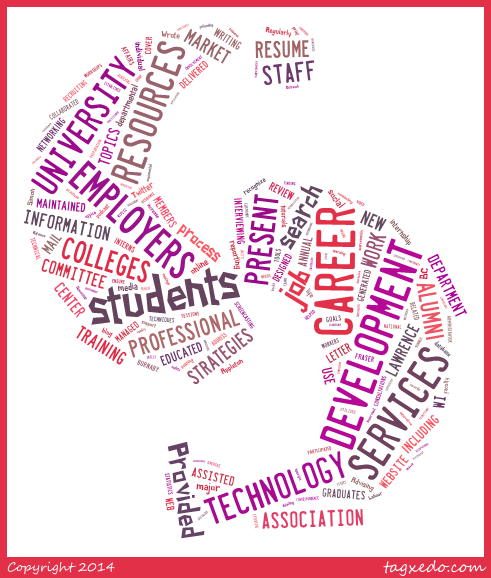
By admin, on January 7th, 2015  I’m sure you’ve seen word clouds before – you know, they’re those fun collages made up of words. Sites like Wordle, Tagxedo, and Word It Out, allow you to paste text into a box then generate a word cloud that highlights the most frequently used words in the text. (Some sites, like Tagxedo, even let you create a word cloud based on a specific shape – like the Sweet Careers logo!) I’m sure you’ve seen word clouds before – you know, they’re those fun collages made up of words. Sites like Wordle, Tagxedo, and Word It Out, allow you to paste text into a box then generate a word cloud that highlights the most frequently used words in the text. (Some sites, like Tagxedo, even let you create a word cloud based on a specific shape – like the Sweet Careers logo!)
Word cloud generators are also an easy, (and fun), way to check which keywords your resume, (or the job description for a position you’re applying for), is emphasizing. All you have to do is cut and paste your resume into the generator’s create box and click submit. The words that are the largest in the word cloud are the ones you’re using most. Are the biggest words the ones you expected? Are you using too many buzzwords, (e.g. effective, innovative, expert)?
You can also use a word cloud to analyze your LinkedIn profile. Be sure to let me know if you need help revising your resume or LinkedIn profile. Share your resume word cloud in the comments.
By admin, on March 20th, 2014  You work so hard to tailor your resume for each specific position. You word-smith and tweak, re-size and fuss until it is absolutely perfect. You submit the resume for the job and follow up with the employer a few days later, only to receive awful news. The file got corrupted somehow and they couldn’t read your resume!! You tell them it’s not a problem and that you’ll re-submit right away, but quickly discover that your resume file is completely corrupted on your hard drive! You work so hard to tailor your resume for each specific position. You word-smith and tweak, re-size and fuss until it is absolutely perfect. You submit the resume for the job and follow up with the employer a few days later, only to receive awful news. The file got corrupted somehow and they couldn’t read your resume!! You tell them it’s not a problem and that you’ll re-submit right away, but quickly discover that your resume file is completely corrupted on your hard drive!
To avoid the scenario above, here are some tips to ensure you always have backups of your resume. Some of these tips may seem over the top, but if you ever find yourself in a situation where your computer has failed or your file has been corrupted and you need to re-send your resume to an employer, you will appreciate having extra copies available. Many of these tips can also be applied to your cover letters, and to any other important documents.
- Don’t just save over older versions of your resume whenever you tailor a new version for a new job. Save a brand new document, naming it lastname_resume_jobtitle_company.docx
- Save the final copy (the one you submitted for the job) in a few different locations, such as:
- on your hard drive,
- on a USB key or other portable drive,
- in a cloud service (such as Dropbox, Google Drive, Box, iCloud, etc.), and
- email it to yourself and save the email in a folder called “Application Materials.”
- Keep your LinkedIn profile up-to-date. This is a good idea for any job seeker, but if you find you’ve lost your resume file, you can pull information from your profile as a last resort.
- If your school has a career management tool, take advantage of the option to upload different versions of your resume to your account.
- Finally, for a low-tech back-up solution, keep printouts of your tailored resumes with the name of the company to which it had been sent, written in pencil, in a corner on the back.
Recovering your file
If you find you’ve already lost your resume and are desperate to get it back, there are a couple of options:
Continue reading Quick Tips: Save backup copies of your resume! »
By admin, on October 3rd, 2013  Throughout your high school and college career, you’ve had many people come along side you to support you, encourage you, and even challenge you. Take some time to say thanks: Throughout your high school and college career, you’ve had many people come along side you to support you, encourage you, and even challenge you. Take some time to say thanks:
- Send a quick email, a thank-you card, or make a call.
- If it’s been a while, let the person know what you’ve been up to, (internships and summer jobs you’ve held, your choice of major, and career aspirations), and thank them specifically for how they’ve helped you.
- As you make progress down your career path, remember to touch base with these key supporters with updates along the way.
There are also a lot of people you will meet along the way who can benefit from your knowledge and experience. You may feel like you are just at the start of your career path, but here are practical things to do if a fellow student or young professional asks for your help:
- Be willing to talk with fellow students about your choice of major, why you chose it, the courses you like best, and the faculty to take/avoid.
- Think about all the resources you’ve run into as you’ve mulled through career options – maybe another student thinking of the same career path would benefit from them, too.
- Be open to discussing your job or internship search process – you know how challenging the process can be, perhaps your experience can help make things a bit easier for the next student.
- If you have built your professional network up a bit while in the last few years, be open to sharing some of those connections with other students with similar interests.
|
A sample text widget
Etiam pulvinar consectetur dolor sed malesuada. Ut convallis
euismod dolor nec pretium. Nunc ut tristique massa.
Nam sodales mi vitae dolor ullamcorper et vulputate enim accumsan.
Morbi orci magna, tincidunt vitae molestie nec, molestie at mi. Nulla nulla lorem,
suscipit in posuere in, interdum non magna.
|
|